Share Dashboards in Embedded Scenarios
Dashboard sharing in Qrvey provides the ability to define custom tenant organizations that enable the sharing of dashboards within individual customer organizations. You can create configurable roles in the Qrvey Admin Center to enable sharing between users within the same tenant and promote more granular control of user access when editing and viewing dashboards.
Enable Sharing and Embed
Before embedding, review Share Dashboards in Composer to learn about Qrvey sharing and permissions.
Follow these steps to embed a dashboard with sharing enabled:
- From Composer, create a dashboard to share.
- Share the application that contains the new dashboard.
- Embed the dashboard using a JWT. You can use a widget configuration object to embed in a test phase.
If the orgs object is not passed in the JWT or widget configuration, the dashboard is embedded with the sharing settings defined in Composer.
Note: Embedded scenarios do not list roles and users that are created in Admin Center and exist in the Qrvey database. The list of roles, users, and customer organizations in the sharing modal is determined by the
orgsobject in the JWT configuration.
By default, the dashboard is shared with the following access:
- Shared with the owner’s organization (Edit access).
- Shared with all customer organizations (Use access).
Share With Customer Organizations
The orgs object determines the list of roles, users, and customer organizations available in the sharing modal.
The following example shows the orgs object structure.
"orgs": [
  {
    "orgId": "org:1",
    "orgRoles": ["role1", "role2"],
    "users": [
      { "clientId": "client1", "email": "client1@qrvey.com" },
      { "clientId": "client2", "email": "client2@qrvey.com" }
    ]
  },
  {
    "orgId": "org:2",
    "orgRoles": ["role3", "role4"]
  }
]
When defined in the orgs object, sharing settings are displayed in the Sharing modal of the embedded dashboard.
- Customer organizations in the example are defined as
org:1andorg:2. - The
orgRolesare roles that belong to the organization. They are displayed in the organization's Roles list. - The
usersobject defines users that belong to the organization. They are displayed in the organization's Users list.
Note: The list of users defined in the
usersobject is displayed only for the organization of the user accessing the widget. In the code block, the user must belong toorg:1to view the emails ofclient1andclient2.
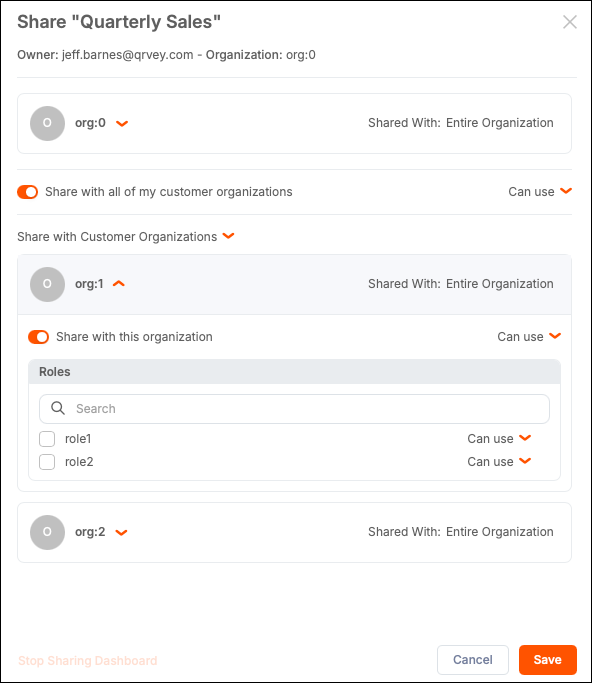
The following example shows how a user from org:0 accesses the widget. Customer organizations org:1 and org:2 do not list users, only roles.
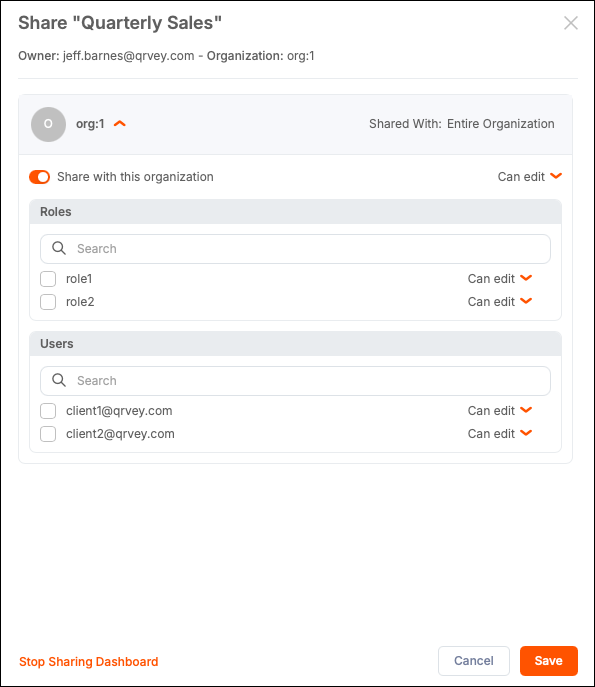
The following example shows how a user from org:1 accesses the widget. The customer organization org:1 lists Roles and Users. The org:2 organization is not listed because customer organizations are only supported for org:0.
Note: The default JWT (version 1) size limit is 8 KB. If you add more than 65 users to the
orgsobject, this limit is exceeded, causing the API call to fail. Qrvey recommends using version 2, which supports token sizes up to 20 MB. To use version 2, you must explicitly set"version": 2when creating the token. For more information, see Generate Widget Security Token.
The following example shows how a user from org:1 accesses the widget. The customer organization org:1 lists Roles and Users. The org:2 organization is not listed because customer organizations are only supported for org:0.
Sharing Options
The sharing modal provides options to share with organizations, roles, and users, with access-level controls. You can set access levels (Edit or Use) for each sharing entry. If a user is assigned to multiple access levels within a hierarchy, the most specific (narrowest) access level applies. For example, if a dashboard is shared as Edit with the entire organization but as Use with a specific user, the user receives Use access.
- Entire organization — All users in your organization with Edit or Use access (defaults to Edit).
- Specific roles — One or more roles within your organization with Edit or Use access (defaults to Edit). Available only if roles have been defined.
- Specific users — Up to 50 named users within your organization with Edit or Use access (defaults to Edit). Available only if users have been defined.
- Share with all of my customer organizations — All tenant organizations with Edit or Use access (defaults to Use). Available to
org:0users only. - Specific customer organizations — The entire tenant organization with Edit or Use access (defaults to Use). Available to
org:0users only. - Specific roles within customer organizations — Roles defined within tenant organizations with Edit or Use access (defaults to Use). Available to
org:0users only. - Stop Sharing Dashboard - Removes dashboard access for anyone except the owner and users with Content Administration permission. Dashboard access level is set to Private.
Rules for Sharing
When embedding dashboards, the following rules apply to sharing:
- If no
orgIdis passed for the user accessing the widget, the platform looks for a match of theclientIdin theorgsobject to define theorgId. If no match is found, the platform defaults toorg:0. - If no
clientIdis passed, it is assumed to beanonymous. - A shared dashboard with Edit access can be reshared within the dashboard owner's organization and with customer organizations (available to
org:0users only).
Anonymous users (no clientId passed) can only have Use access to dashboards shared with them. They cannot edit, duplicate, or delete dashboards.
Role Assignment in Embedded Scenarios
Users require Asset Sharing permission to share their dashboards. To edit the content in a shared dashboard, users require Content Administration permission or Edit access on the shared dashboard. For more information, see Permissions. Only roles created in the Admin Center can be assigned these permissions. To obtain Asset Sharing or Content Administration permissions in an embedded scenario, the role assigned to the user in the security token must match the role created in the Admin Center with those permissions enabled.
Note: The
rolesproperty is only supported in the JWT. It cannot be used in the widget configuration for security reasons.
The following example shows a user from org:0 with an assigned Qrvey role and sharing configuration.
{
 "appId": "app1",
 "userId": "user1",
 "email": “client0@qrvey.com”,
 "orgId": "org:0",
 "clientId": "client0",
 "roles": [“Qrvey”],
 "orgs": [
   {
     "orgId": "org:1",
     "orgRoles": ["role1", "role2"],
 "users": [
       { "clientId": "client1", "email": "client1@qrvey.com" },
       { "clientId": "client2", "email": "client2@qrvey.com" }
     ]
   },
   {
     "orgId": "org:2",
     "orgRoles": ["role3", "role4"]
   } ]
}
If this role exists in Qrvey (created in Admin Center) with Asset Sharing and Content Administration permissions assigned, user1 with clientId = client0 can share and modify shared dashboards.
Rules for roles defined in the JWT:
- If the assigned role exists in the Qrvey database (role created in Admin Center) and the role has Asset Sharing or Content Administration permissions, they apply to the user.
- If a role cannot be established because a matching role does not exist in the Qrvey database (role not created in Admin Center), the user is assumed not to have Asset Sharing or Content Administration permission.
- If no role is assigned to the user in
org:0, Qrvey attempts to match theclientIdof the user to theuserIdin the Qrvey database. If Qrvey finds a match, the platform uses the role of thatuserId. - If a new role is passed in the
rolesproperty, that role is used. It does not have Asset Sharing or Content Administration permissions because it was not created in Qrvey. - If the
clientIdis assumed to be anonymous (noclientIdpassed), no role is assigned.
Automation (Flows) and Scheduled Exports
Only dashboards and charts the user has access to are available for export or as email attachments.
The Automation (Flows) widget supports the roles, clientId, and orgId properties for authentication and access.
When a user works with the Send Email action, the following rules apply when attaching dashboards and their charts:
- If a
clientIdis passed to the automation widget, the assets of this user can be selected as attachments. - If a
clientIdis not passed, theclientIdis assumed to be set touserId. - If
orgIdis passed, the assets owned by theclientIdwithin theorgIdcan be selected as attachments. - If
orgIdis not passed, it is assumed to be set to“org:0”. - If the
rolesproperty is passed, it establishes the roles associated with the user accessing the automation widget.
Shared dashboards and their charts are available as attachments in a Send Email action if they are shared with the user accessing the widget or if the user accessing the widget has a Content Administration permission.
Scheduled exports support sharing and permissions settings. You can also use the orgs object for scheduled exports. For more information, see Subscriptions.